Fast read
If your Sigenergy battery is not showing data, the modem likely needs to be connected to your home Wi-Fi using the mySigen app. Enter the CMU serial number manually, connect to the SigenSticks hotspot, and then link it to your home network. Most issues are caused by password errors or weak signal strength.
Why Is My Sigenergy Battery Not Showing Data?
If your Sigenergy battery has been installed but no data appears in the mySigen app, the most common cause is that the modem (SigenSticks) has not been connected to your home Wi-Fi network. This issue is usually simple to fix. The battery system itself is working, but the communications modem needs to be configured so it can send data to the cloud and display it inside your app. Important: This guide only covers connecting the communications modem through the app. Do not open the energy gateway or battery housing. Never touch fixed wiring. Any electrical work must be carried out by a licensed electrician.
How Do I Begin the Network Configuration?
The entire setup process is completed through the mySigen app. If you have not already done so, download the app from the App Store or Google Play and log into your account. In some cases, your installer may have already created your account for you. Once inside the app, go to the “Device” section and locate your system serial number. You will see a code that begins with “CMU.” Copy only the number that follows those letters. Then navigate to Settings and select “Network Configure.” When prompted to scan a QR code, choose the option to enter the details manually. Paste the serial number and submit it to begin the connection process.
How Do I Connect the Modem to My Home Wi-Fi?
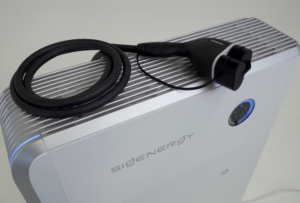
After submitting the serial number, the app will ask how you would like to connect. Select the option indicating that you want to connect the device to its hotspot. Your phone will temporarily disconnect from your home Wi-Fi and connect directly to the SigenSticks network. Once connected to the hotspot, the app will display a list of nearby Wi-Fi networks. Select your home network and carefully enter your Wi-Fi password. After confirming, the modem will attempt to join your network. When successful, a confirmation message and green tick should appear. You can then finish the process, and your phone will reconnect to your normal home Wi-Fi. Within a few minutes, your system should appear online in the app.
What Should I Do If It Still Doesn’t Work?
If the modem fails to connect, the most common cause is an incorrect Wi-Fi password. Double-check the spelling and try again. Another frequent issue is weak Wi-Fi signal strength, particularly if the energy gateway is located in a garage or outside wall. In such cases, you may need to move your router closer or install a Wi-Fi extender. It is also important to ensure your router is broadcasting a 2.4 GHz Wi-Fi band, as the modem connects most reliably on this frequency. If multiple attempts fail, contact your original installer so they can inspect the hardware and confirm the configuration.